Troubleshooting Guide
OpenClaw Troubleshooting
Every common OpenClaw error with exact commands and step-by-step fixes. Organized by category — click any error to expand the full solution.
Start Here: Quick Diagnostic
Easiest: Use ClawSquire (GUI)
ClawSquire → click Run Doctor on the Dashboard. You get a visual report with categorized results — no terminal needed.
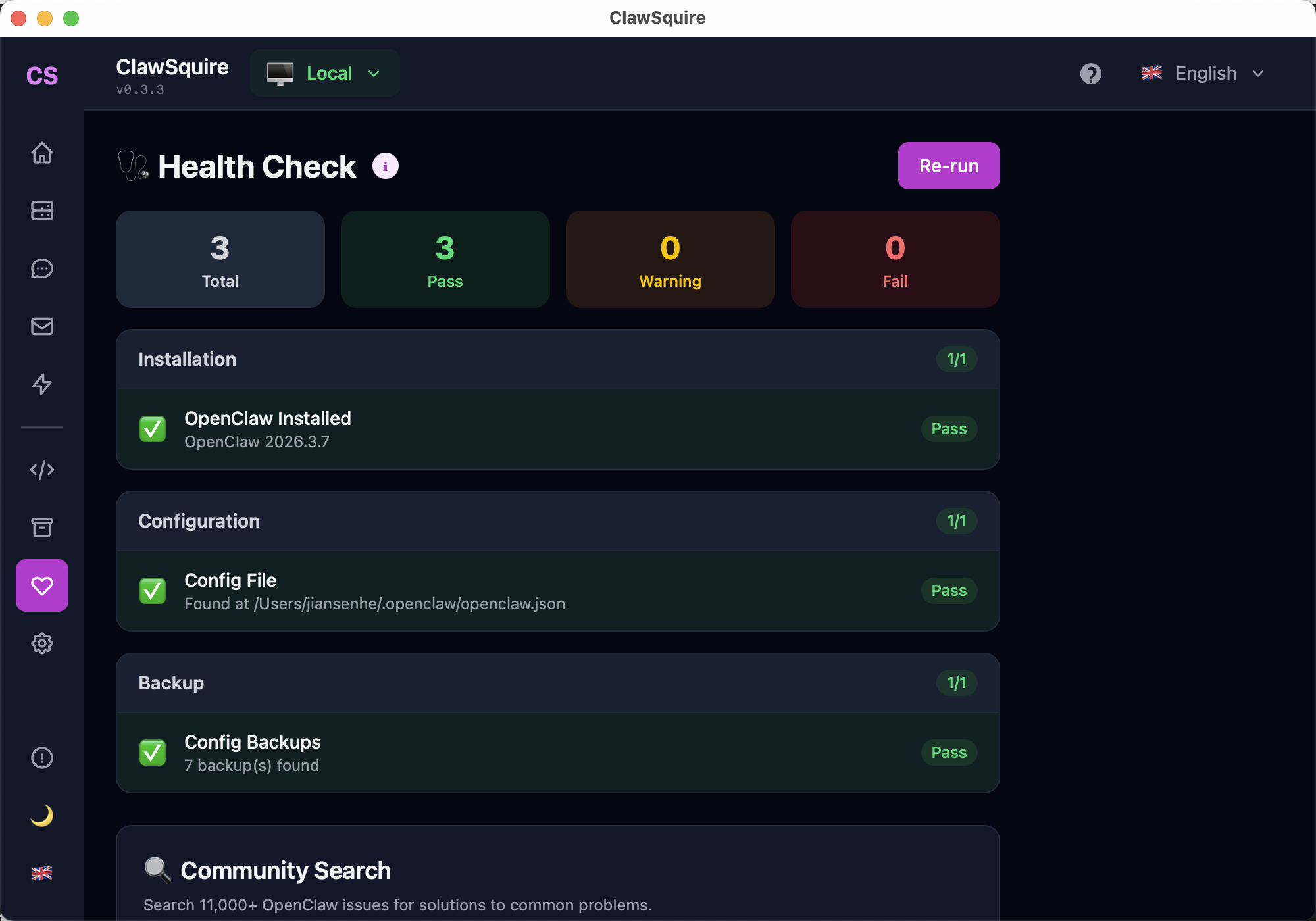
Or via command line:
openclaw doctorThis checks installation, config, gateway status, LLM connectivity, and backup status. Each issue includes a fix_hint with the exact command to fix it.
What this guide covers
Visual Troubleshooting with ClawSquire
ClawSquire replaces most of the CLI commands below with point-and-click tools:
One-click diagnostics with categorized results and fix suggestions.
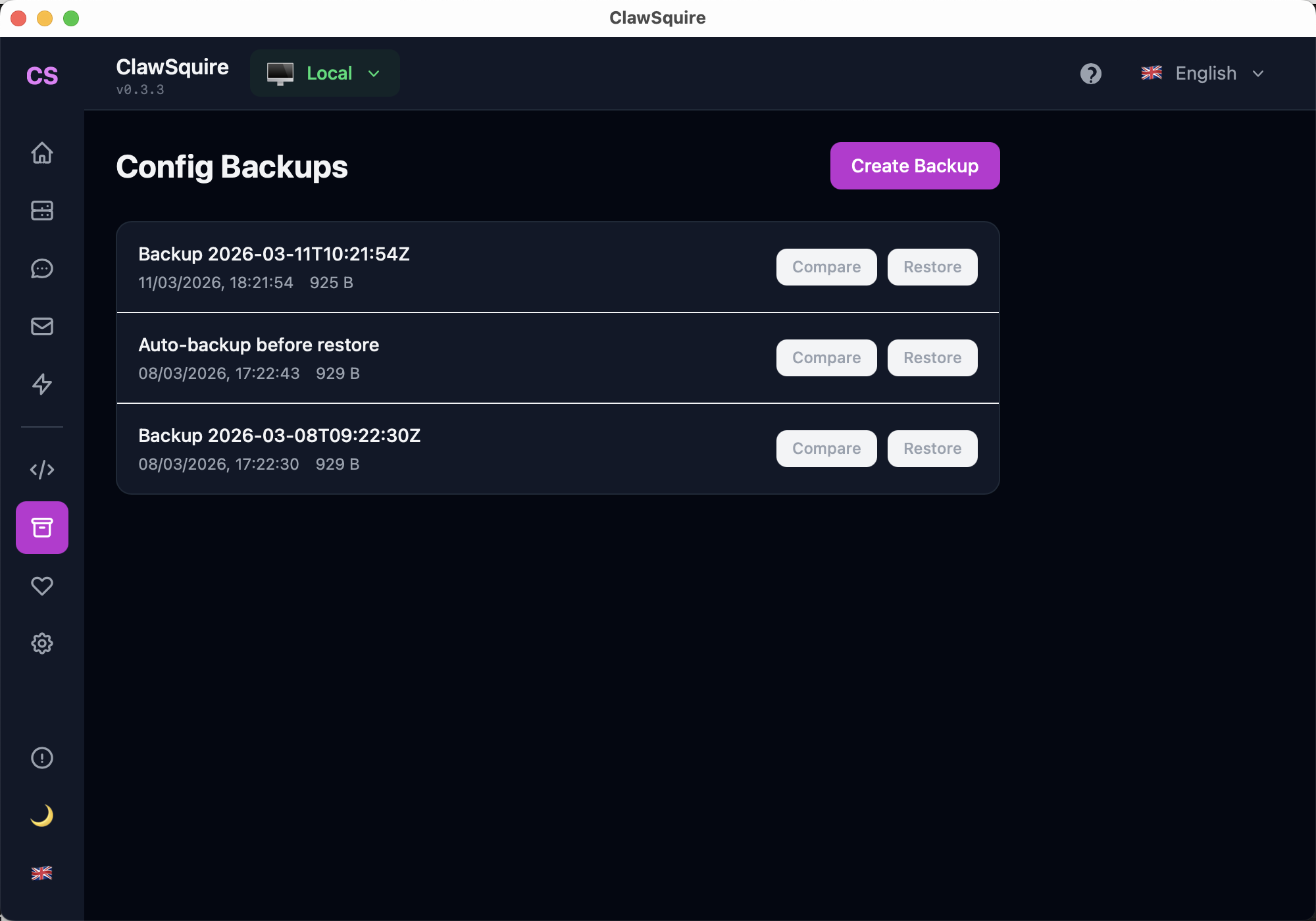
Version your config so you can always roll back if something breaks.
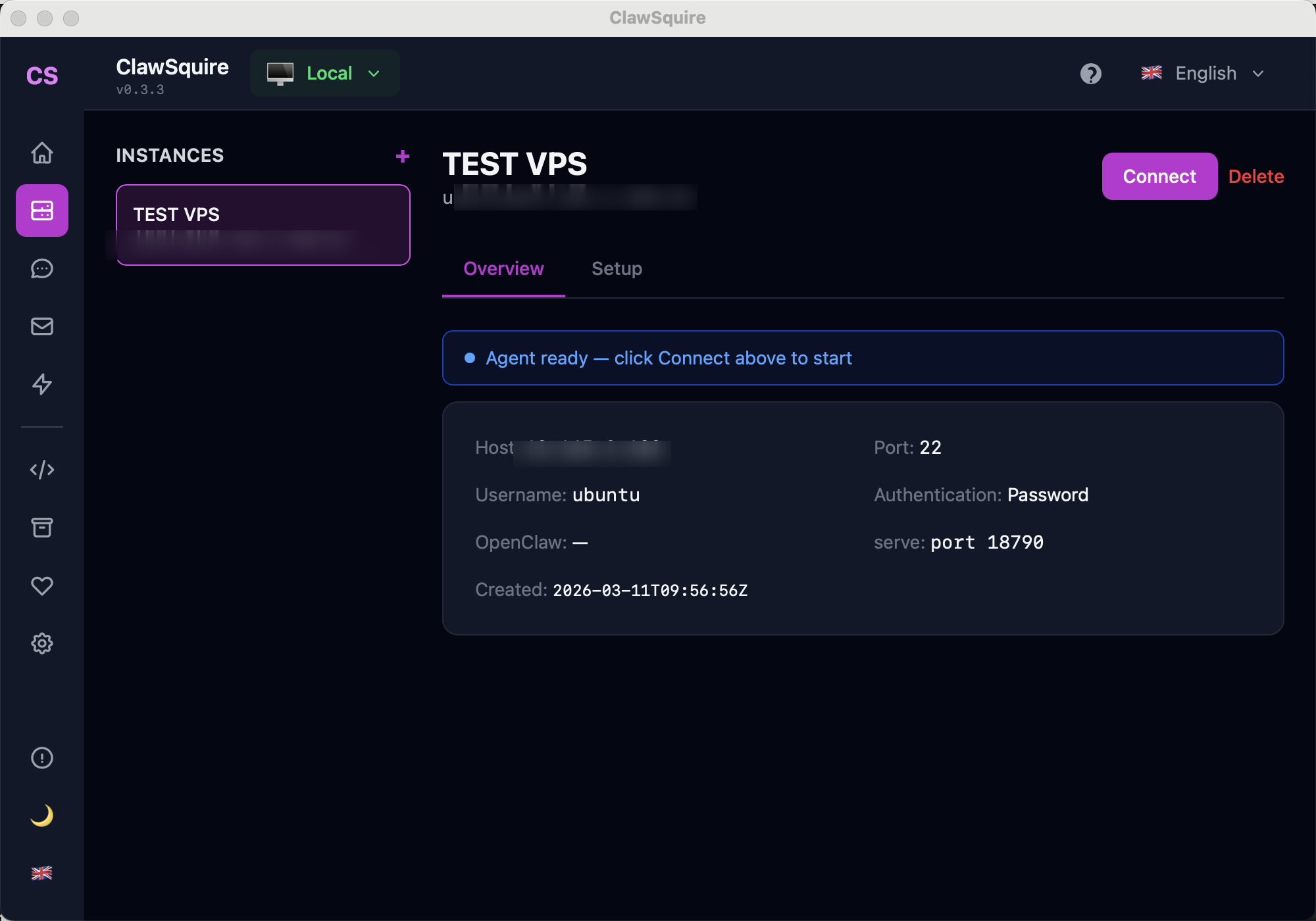
Auto-connects to remote VPS, eliminating Error 1008 entirely.
Search 11,000+ GitHub issues with AI-powered matching — right inside the app.
CLI Troubleshooting Reference
Detailed solutions for each error — expand the issue matching yours.
⟩ Gateway Issues
Gateway won't start / connection refused on port 18789+
This is the most common issue. The gateway might be stopped, another process may be using port 18789, or Node.js isn't installed. Run the diagnostic commands below to identify the root cause.
# Step 1: Check if anything is on port 18789
lsof -i :18789

# Step 2: If a process is found, kill it
kill $(lsof -t -i :18789)

# Step 3: Check Node.js version (18+ required)
node --version

# Step 4: Try force-starting the gateway
openclaw gateway --force

# Step 5: Check logs for specific errors
openclaw logs --tail 50
Error 1008 / "Control UI requires device identity"+
This error appears when you access the Dashboard over plain HTTP from a non-localhost address. The browser's Web Crypto API requires a secure context (HTTPS or localhost). This is a security feature, not a bug.
Gateway auth failed / 401 Unauthorized+
Your gateway token is either missing, expired, or mismatched between your browser session and the gateway. This commonly happens after an OpenClaw update that changed the auth mode (gateway.auth.mode was updated in 2026.3.7+).
# Regenerate your gateway token
openclaw doctor --generate-gateway-token

# Or check your current token
openclaw config get gateway.token

# If using the new auth mode, also check:
openclaw config get gateway.auth.modeEADDRINUSE: port 18789 already in use+
Another OpenClaw process (or something else) is already listening on port 18789. This often happens after a crash where the old process wasn't properly cleaned up, or if you're running multiple OpenClaw instances.
# Find what's using the port
lsof -i :18789

# Kill only the process on that port
kill $(lsof -t -i :18789)

# Or use a different port
openclaw gateway --port 28789

# On Linux, you can also check with:
ss -tlnp | grep 18789Dashboard loads but shows 'Disconnected'+
The HTML page loads but the WebSocket connection fails. This is usually a reverse proxy configuration issue — the WebSocket upgrade headers are missing. If you're using Nginx, make sure proxy_set_header Upgrade and Connection headers are set.
# Check if gateway is actually running
openclaw gateway status

# Test WebSocket connection directly
curl -i -N -H "Connection: Upgrade" -H "Upgrade: websocket" \
  http://localhost:18789/ws

# If using Nginx, add these headers:
# proxy_http_version 1.1;
# proxy_set_header Upgrade $http_upgrade;
# proxy_set_header Connection "upgrade";⟩ Bot & Channel Issues
Telegram bot not responding to messages+
Check three things in order: (1) Is the gateway running? (2) Is the bot token correct and active? (3) Does the LLM provider have available credits? The most common cause is an expired or revoked bot token from BotFather.
# Check gateway status
openclaw gateway status

# Verify Telegram channel config
openclaw config get channels.telegram

# Check LLM provider status
openclaw doctor

# View recent logs for errors
openclaw logs --tail 20 | grep -i "telegram\|error"WhatsApp QR code expired / session lost+
WhatsApp Web sessions expire periodically, especially after phone restarts or WhatsApp app updates. You need to re-scan the QR code. Note: WhatsApp only allows one Web session at a time — if you log in elsewhere, the OpenClaw session disconnects.
# Reconnect via Dashboard
# Dashboard → Channels → WhatsApp → Reconnect

# Or via CLI:
openclaw channels reconnect whatsappDiscord bot is online but doesn't respond+
Usually a permissions issue. Check that your bot has the 'Message Content Intent' enabled in the Discord Developer Portal (required since Discord API v10). Also verify the bot has 'Send Messages' permission in the specific channel.
# Check Discord channel config
openclaw config get channels.discord

# Common fix: Enable Message Content Intent
# Discord Developer Portal → Your App → Bot →
# Privileged Gateway Intents → Message Content Intent ✓'No API key found for provider' error+
The LLM provider (DeepSeek, OpenAI, etc.) isn't configured or the API key is invalid. Check your configuration and ensure the key is set correctly. API keys are stored in your openclaw.json config file.
# Check current LLM config
openclaw config get agents.defaults.model
openclaw config get agents.defaults.provider

# Set a provider key (example for DeepSeek)
openclaw config set DEEPSEEK_API_KEY "sk-your-key-here"

# Verify the key works
openclaw doctor⟩ Installation Issues
'openclaw: command not found' after installation+
The openclaw binary isn't in your system PATH. This commonly happens with npm global installs where the npm bin directory isn't in PATH, or on macOS where the shell profile wasn't reloaded after installation.
# Find where openclaw was installed
which openclaw || npm list -g openclaw

# Check npm global bin directory
npm config get prefix
# The binary should be at: <prefix>/bin/openclaw

# Fix: Add npm global bin to PATH
echo 'export PATH="$(npm config get prefix)/bin:$PATH"' >> ~/.bashrc
source ~/.bashrc

# Verify
openclaw --version
Node.js version too old or not found+
OpenClaw requires Node.js 18 or later. Older versions will either fail to install or crash at runtime with syntax errors. Check your version and upgrade if needed.
# Check current version
node --version

# Install Node.js 22 LTS (Ubuntu/Debian)
curl -fsSL https://deb.nodesource.com/setup_22.x | sudo -E bash -
sudo apt install -y nodejs

# Install via nvm (any OS, recommended)
curl -o- https://raw.githubusercontent.com/nvm-sh/nvm/v0.40.0/install.sh | bash
nvm install 22
nvm use 22
Permission denied / EACCES during npm install+
Never use 'sudo npm install -g'. Instead, configure npm to use a user-owned directory. This is a common Node.js issue, not specific to OpenClaw.
# Fix: Set npm prefix to a user directory
mkdir -p ~/.npm-global
npm config set prefix ~/.npm-global
echo 'export PATH="$HOME/.npm-global/bin:$PATH"' >> ~/.bashrc
source ~/.bashrc

# Then install normally (no sudo)
npm install -g openclaw
Installation fails on Windows+
Windows-specific issues include: PowerShell execution policy blocking scripts, missing build tools for native dependencies, or WSL vs native Node.js conflicts. See the Windows-specific guide for detailed steps.
# Fix execution policy (run as Administrator)
Set-ExecutionPolicy -Scope CurrentUser -ExecutionPolicy RemoteSigned

# Install Windows build tools if needed
npm install --global windows-build-tools

# Or use WSL (recommended for Windows)
wsl --install⟩ Performance Issues
Responses are very slow (10+ seconds)+
Response time depends on your LLM provider. DeepSeek servers can have high latency during peak hours (typically 8-11 PM CST). Try switching to a different model or provider to isolate whether it's a provider issue or an OpenClaw issue.
# Check which model you're using
openclaw config get agents.defaults.model

# Test provider latency directly
time curl https://api.deepseek.com/v1/models \
  -H "Authorization: Bearer $DEEPSEEK_API_KEY"

# Switch to a faster model temporarily
openclaw config set agents.defaults.model "deepseek-chat"

# Or try a different provider (e.g., Groq for speed)
openclaw config set agents.defaults.provider "groq"
High memory usage (500MB+)+
OpenClaw's memory footprint depends on active channels and conversation history. A basic setup (1 channel, no browser tools) uses ~150-300MB. With browser tools enabled, expect 400-600MB. This is normal for a Node.js application handling real-time WebSocket connections.
# Check OpenClaw memory usage
ps aux | grep openclaw | grep -v grep

# Reduce memory: Disable unused channels
openclaw config set channels.whatsapp.enabled false

# Reduce memory: Limit conversation history
openclaw config set agents.defaults.maxHistory 20

# Monitor in real-time
top -pid $(pgrep -f "openclaw")
OpenClaw crashes or restarts frequently+
Check the logs for the specific error. Common causes: out-of-memory (especially on 512MB VPS), unhandled promise rejections from LLM provider timeouts, or file descriptor limits on Linux.
# Check recent crash logs
openclaw logs --tail 100

# Check system memory
free -h  # Linux
vm_stat  # macOS

# Increase file descriptor limit (Linux)
ulimit -n 65535

# Run with PM2 for auto-restart
pm2 start "openclaw gateway" --name openclaw
pm2 logs openclawDiagnostic Decision Tree
OpenClaw not working?
→ Can you run openclaw --version?
→ No: Installation issue. See "command not found" above.
→ Yes: Run openclaw doctor
→ Doctor shows errors? Follow the fix_hints.
→ Doctor passes but still broken?
→ Dashboard not loading? Check "Gateway won't start" or "Error 1008".
→ Bot not responding? Check "Telegram/Discord/WhatsApp" issues above.
→ Slow responses? Check "Performance Issues" section.
→ None of the above? Search 11,000+ community issues.
Related Guides
- → Health Check — visual diagnostics
- → Fix Device Identity Error — detailed Error 1008 guide
- → Gateway token — fix auth errors
- → Restart OpenClaw — apply config changes
- → CLI Reference — all OpenClaw commands
- → Community Search — 11,000+ issues