Guide
Connect Telegram to OpenClaw
Telegram is the fastest way to chat with your OpenClaw AI agent. This guide walks you through creating a Telegram bot and connecting it to OpenClaw — takes about 5 minutes.
⚡ Quick Answer
To connect Telegram to OpenClaw: (1) Create a bot via @BotFather on Telegram and copy the token. (2) In ClawSquire, go to Channels → Add Channel → select Telegram → paste the token. (3) Send /pair to your bot and enter the code. Done — you can now chat with your AI agent.
Prerequisites
- • OpenClaw installed and running (installation guide)
- • A Telegram account (free, available on all platforms)
- • An LLM provider configured (e.g., DeepSeek, OpenAI)
⟩Recommended: Use ClawSquire
The easiest way to add Telegram is through ClawSquire — no terminal needed. Connect to your OpenClaw instance (local or VPS), then follow these two steps.
Open ClawSquire → Channels → Add Channel
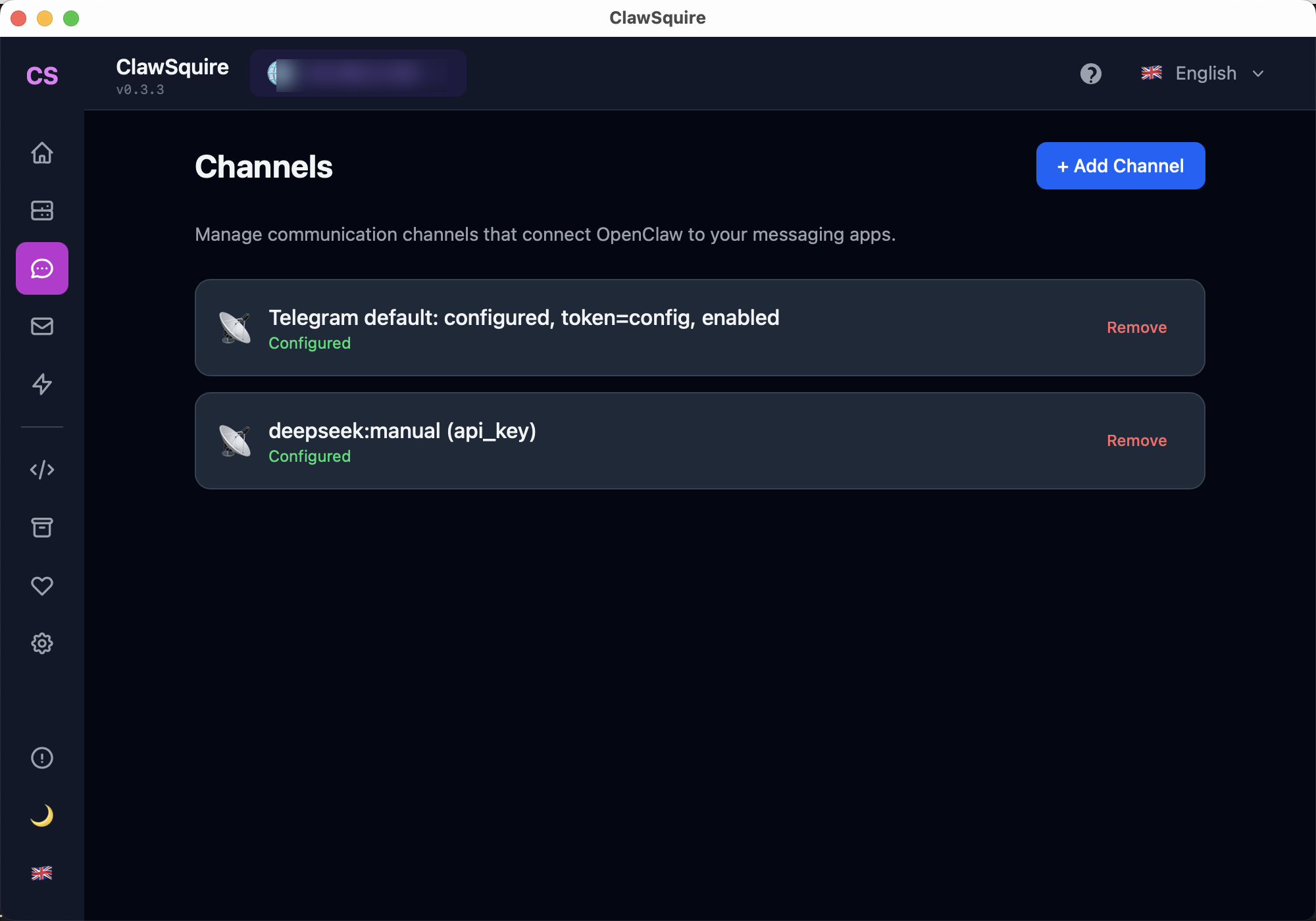
Launch ClawSquire and connect to your OpenClaw instance (or use Remote Mode for a VPS). Go to the Channels page and click the blue + Add Channel button.
Select Telegram → Paste Bot Token → Done
Choose Telegram from the channel list, paste the bot token you got from @BotFather, and save. The channel will show a green "Configured" badge when ready. Then open your bot in Telegram, send /pair, and enter the 6-character code to pair your device.
💡 Using a remote VPS?
ClawSquire connects to your VPS via SSH tunnel. Once connected, the Channels page works the same — add Telegram, paste your token, and pair. The screenshot above shows a Channels page connected to a remote VPS with Telegram already configured.
⟩Manual CLI Setup
If you prefer the command line or don't have ClawSquire, follow these steps.
Create a Telegram Bot via BotFather
Open Telegram and search for @BotFather. Send the command:
/newbotBotFather will ask you for a name (display name) and a username (must end in "bot", e.g., "MyOpenClawBot").
After creation, BotFather sends you a bot token — a long string like 7123456789:AAH.... Copy it.
🔒 Keep your token secret
Anyone with this token can control your bot. Never share it publicly.
Add the Telegram Channel via CLI
Run the following command with your bot token:
openclaw channels add telegram --bot-token YOUR_BOT_TOKENReplace YOUR_BOT_TOKEN with the token from BotFather.
Pair Your Device
Open your Telegram bot and send:
/pairThe bot responds with a 6-character pairing code. Enter this code in the Dashboard or confirm it in the CLI. Once paired, you can start chatting.
Start Chatting
Send any message to your bot — it will respond using the LLM model you configured. The conversation is managed as an OpenClaw session.
💡 Tips
- • You can create multiple Telegram bots for different purposes
- • Each bot can use a different model or system prompt
- • Messages are processed locally — nothing leaves your server except to the LLM API
⟩Troubleshooting
Where do I get the Telegram bot token?+
Open Telegram, search for @BotFather, send /newbot, and follow the prompts for name and username. BotFather will send you a bot token (a long string like 7123456789:AAH...). Copy it and never share it publicly. The token grants full control over your bot — anyone with it can send messages as your bot or revoke access.
Bot doesn't respond+
First, check that the OpenClaw gateway is running (openclaw gateway or via ClawSquire Dashboard). Verify the bot token is correct — a typo or expired token will cause silent failures. Look at gateway logs (openclaw logs or Dashboard → Logs) for connection errors. If you're using a remote VPS, ensure ClawSquire is connected and the tunnel is active.
Pairing code not accepted+
The 6-character pairing code expires after a few minutes for security. Send /pair again to your bot to get a fresh code. If the code still fails, verify the channel is configured and running — check the Channels page in ClawSquire or Dashboard for a green 'Configured' status.
"No API key found" error+
OpenClaw needs an LLM provider configured before it can respond. Add your API key via ClawSquire → Config, or see the DeepSeek setup guide for the cheapest option. The key must be in your auth store (~/.openclaw/.env or Dashboard → Config). Restart the gateway after adding keys.
Can I use multiple Telegram bots with OpenClaw?+
Yes. Create multiple bots via @BotFather, then add each as a separate channel in ClawSquire or via openclaw channels add telegram. Each bot can use a different model, system prompt, or agent — useful for separating personal vs. work assistants, or different languages.
Related Guides
- → Set up DeepSeek — the cheapest LLM provider for reasoning tasks
- → Full installation guide — ClawSquire GUI or terminal
- → OpenClaw Dashboard & Control UI — manage channels, sessions, and config
- → Connect Discord — add Discord as another channel
- → Search OpenClaw issues for solutions to common problems
Guided setup, health diagnostics, 7 languages.