Guide
Connect Discord to OpenClaw
Discord lets you chat with your OpenClaw AI agent in servers and DMs. This guide walks you through creating a bot, setting permissions, inviting it to your server, and pairing — takes about 10 minutes.
Quick Answer
To connect Discord to OpenClaw: create a bot at discord.com/developers/applications (Bot → Add Bot → Reset Token, enable Message Content Intent), invite it to your server, then in ClawSquire → Channels → "+ Add Channel" → select Discord → paste your bot token. Or use CLI: openclaw channels add discord --bot-token YOUR_TOKEN. DM the bot to get a pairing code, approve it, then start chatting.
Prerequisites
- • OpenClaw installed and running (installation guide)
- • A Discord account
- • An LLM provider configured (e.g., DeepSeek, OpenAI)
⟩Recommended: Use ClawSquire
Adding Discord in ClawSquire is visual — the setup wizard guides you through bot creation and token entry.
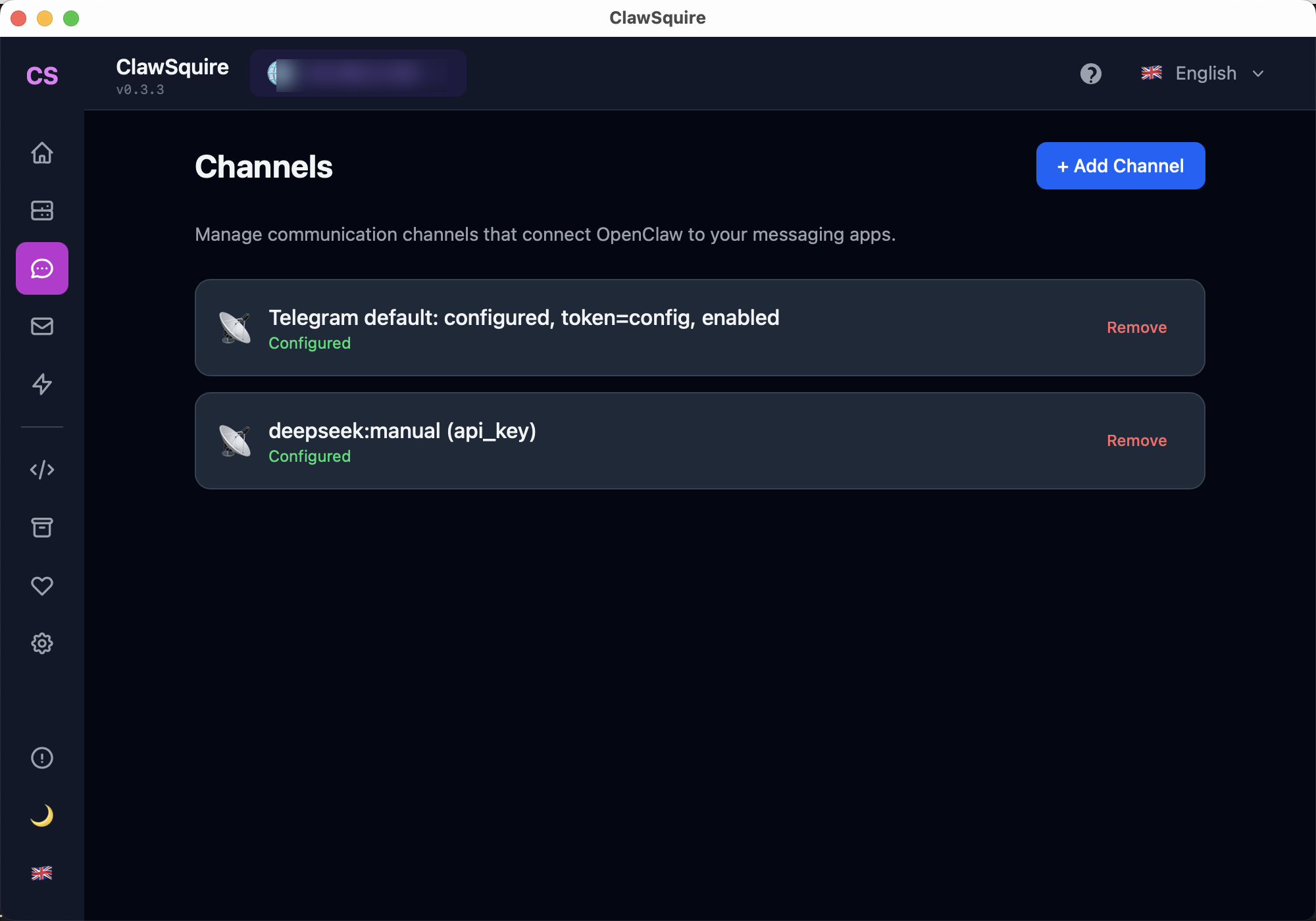
Open ClawSquire → Channels page
Connect to your VPS if OpenClaw runs remotely.
Click "+ Add Channel"
Blue button at the top right of the Channels page.
Select Discord → follow the prompts
ClawSquire guides you through creating a bot (or paste your token), inviting it to your server, and configuring permissions.
Channel appears with "Configured" status
DM your bot or @mention it in a channel to get a pairing code. Approve in ClawSquire Sessions, then start chatting.
⟩Manual Alternative
If you prefer the CLI or don't use ClawSquire, create the bot manually and add the channel via CLI.
Create a Discord Application
Go to discord.com/developers/applications, click New Application, and give it a name (e.g., "OpenClaw").
Create a Bot
In the sidebar, click Bot. Click Add Bot and set the username to whatever you want to call your OpenClaw agent.
Scroll down to Privileged Gateway Intents and enable Message Content Intent (required for the bot to read message content).
Click Reset Token (this generates your first token — nothing is being reset). Copy the bot token and save it somewhere. This is your Bot Token.
🔒 Keep your token secret
Anyone with this token can control your bot. Never share it publicly.
Set Bot Permissions
The bot needs Send Messages, Read Message History, and Embed Links permissions.
Click OAuth2 in the sidebar → URL Generator. Enable:
botapplications.commands
In Bot Permissions, enable: View Channels, Send Messages, Read Message History, Embed Links, Attach Files (optional: Add Reactions).
Invite Bot to Your Server
Copy the generated URL at the bottom of the OAuth2 URL Generator. Paste it into your browser, select your server, and click Authorize. You should now see your bot in the Discord server.
Add Discord Channel via CLI
openclaw channels add discord --bot-token YOUR_TOKENPair and Start
Start the gateway (openclaw gateway if not running). DM your bot in Discord or mention it in a channel — it will respond with a pairing code. Enter the code in the Dashboard or approve via CLI:
openclaw pairing list discord
openclaw pairing approve discord <CODE>
Once paired, you can start chatting with your AI agent.
⟩Troubleshooting
Where do I get the Discord bot token?+
Go to discord.com/developers/applications → New Application → name it (e.g. OpenClaw). In the sidebar: Bot → Add Bot → Reset Token. Copy the token immediately — it's shown only once. Store it securely; never share it publicly.
Bot offline+
Check that the OpenClaw gateway is running (openclaw gateway or via ClawSquire). Verify the bot token in Config or ~/.openclaw/.env. Check gateway logs: openclaw gateway --log-level debug, or view logs in ClawSquire.
Permissions error+
Re-invite the bot with correct permissions. Discord Developer Portal → your app → OAuth2 → URL Generator. Enable bot + applications.commands. In Bot Permissions enable: View Channels, Send Messages, Read Message History, Embed Links. Generate new URL and re-invite.
Message Content Intent not enabled+
Discord requires Message Content Intent for the bot to read messages. Go to discord.com/developers/applications → your app → Bot → Privileged Gateway Intents → toggle Message Content Intent ON. Save changes and restart the gateway.
Bot doesn't respond in DMs or channels+
DM your bot or @mention it in a channel — it responds with a pairing code. In ClawSquire: Sessions → approve the pending pairing. Or via CLI: openclaw pairing list discord, then openclaw pairing approve discord followed by the code. Pairing codes expire in a few minutes.
Next Steps
- → Connect Telegram — another popular channel for OpenClaw
- → Connect WhatsApp — chat from your phone
- → Search OpenClaw issues for solutions to common problems
Guided setup, health diagnostics, 7 languages.