Guide
OpenClaw Health Check
The health check diagnoses gateway status, provider connectivity, channel health, and config validation. Use it to find and fix issues before they cause problems.
Quick Answer
To run an OpenClaw health check: open ClawSquire, click Run Doctor on the Dashboard (or go to the Health Check page), and view categorized results for Installation, Configuration, and Backup. Alternatively, run openclaw doctor in the terminal.
What the health check covers
- • Gateway status — Is the gateway running and reachable?
- • Provider connectivity — Can API keys reach your LLM providers?
- • Channel health — Are Telegram, WhatsApp, and other channels connected?
- • Config validation — Is the config schema valid?
⟩Running the Health Check
ClawSquire provides a visual health check with categorized results — no terminal needed.
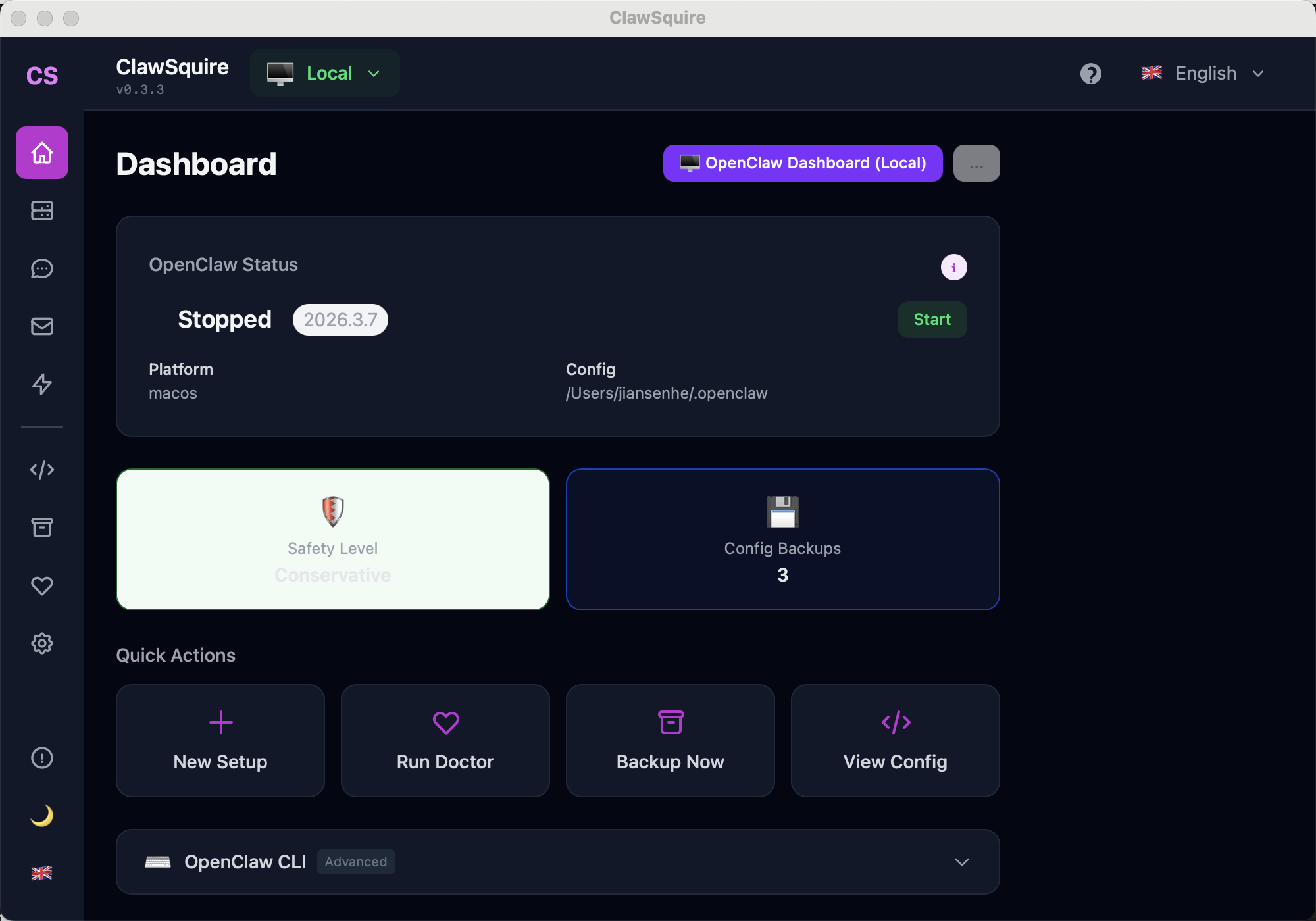
Open ClawSquire → click Run Doctor on Dashboard
Open ClawSquire and click Run Doctor on the Dashboard, or go to the Health Check page directly.
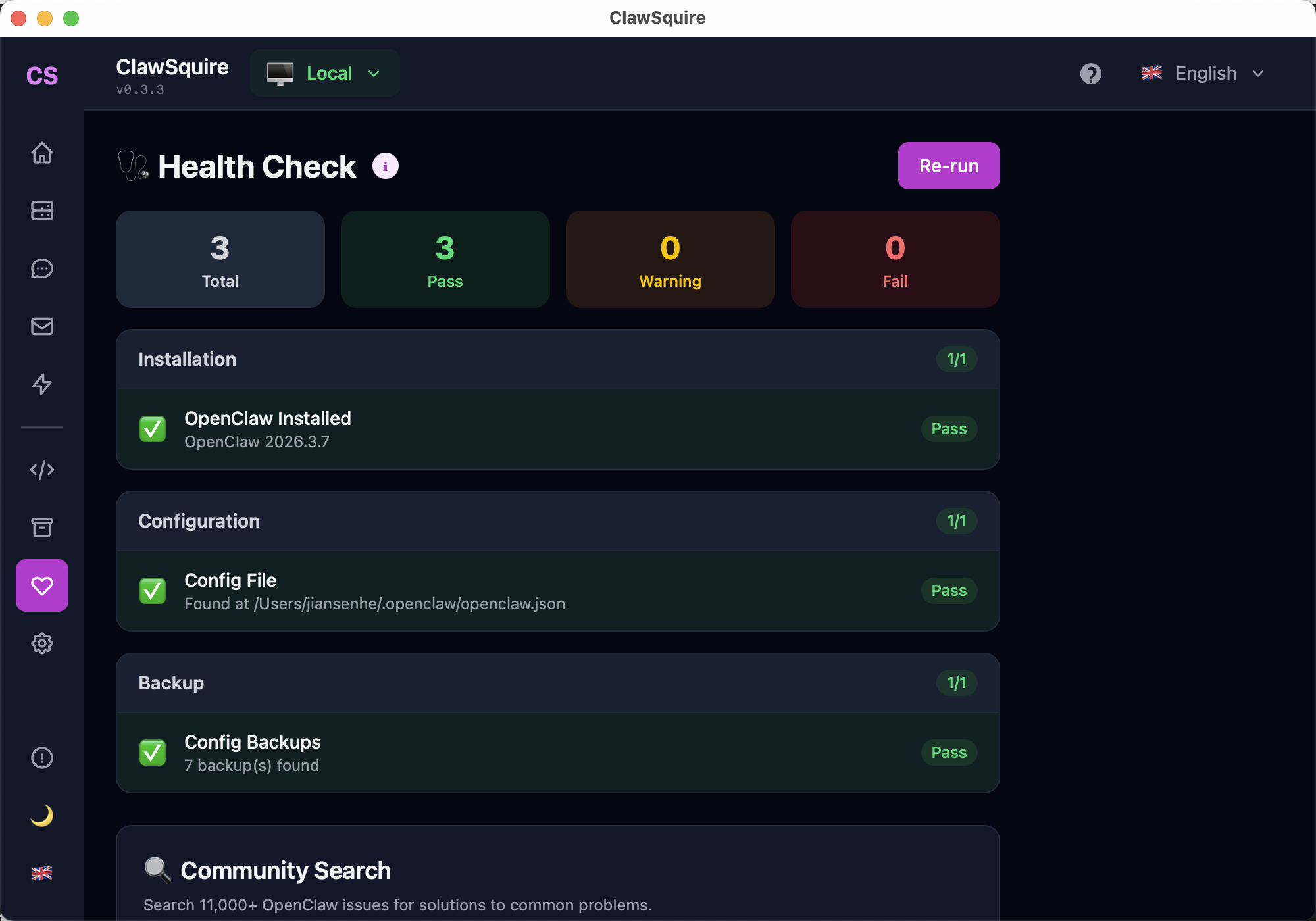
See categorized results: Installation, Configuration, Backup
Results show Pass/Warning/Fail for each category: Installation (OpenClaw version), Configuration (config file location), and Backup (backup count). Use Re-run to refresh.
Manual Alternative
Run diagnostics from the terminal.
Run openclaw doctor
From the terminal, run:
openclaw doctorThe doctor runs a full diagnostic and prints the results. It also generates a gateway token if one is missing and creates default config files.
Understanding the report
Results are categorized by severity:
- • Critical — Must fix before the system works (e.g., gateway not running, no API key)
- • Warning — May cause issues (e.g., channel disconnected, deprecated config)
- • Info — Informational (e.g., optional features not configured)
Common fixes
Here are quick fixes for frequent issues:
API key expired — Regenerate the key in your provider dashboard and update it in Config.
Gateway not running — Run openclaw gateway or start it via ClawSquire.
Channel disconnected — Re-pair the channel (e.g., send /pair to your Telegram bot).
⟩Troubleshooting
Health check says gateway not reachable+
Start the gateway with openclaw gateway. If it's already running, check the port (default 18789). Ensure no firewall is blocking localhost.
Provider connectivity fails+
Verify your API key is correct and has credits. Check ~/.openclaw/.env or the Dashboard Config page. Restart the gateway after changing keys.
Config validation errors+
Run openclaw doctor to see detailed errors. If you upgraded OpenClaw, the config schema may have changed. Check the changelog or restore a backup.
Next Steps
- → Backup your config before making changes
- → Full installation guide
- → Search OpenClaw issues for solutions to common problems
Guided setup, health diagnostics, 7 languages.