Guide
Connect WhatsApp to OpenClaw
WhatsApp lets you chat with your OpenClaw AI agent from your phone. This guide walks you through adding the channel, scanning the QR code, and pairing — takes about 5 minutes.
Quick Answer
To connect WhatsApp to OpenClaw: open ClawSquire → Channels → click "+ Add Channel" → select WhatsApp → follow the prompts → scan the QR code on your phone (WhatsApp → Settings → Linked Devices → Link a Device) → pair and start chatting. Or use the CLI: openclaw channels add whatsapp.
Prerequisites
- • A WhatsApp account (free, available on all platforms)
- • OpenClaw installed and running (installation guide)
- • An LLM provider configured (e.g., DeepSeek, OpenAI)
⟩Recommended: Use ClawSquire
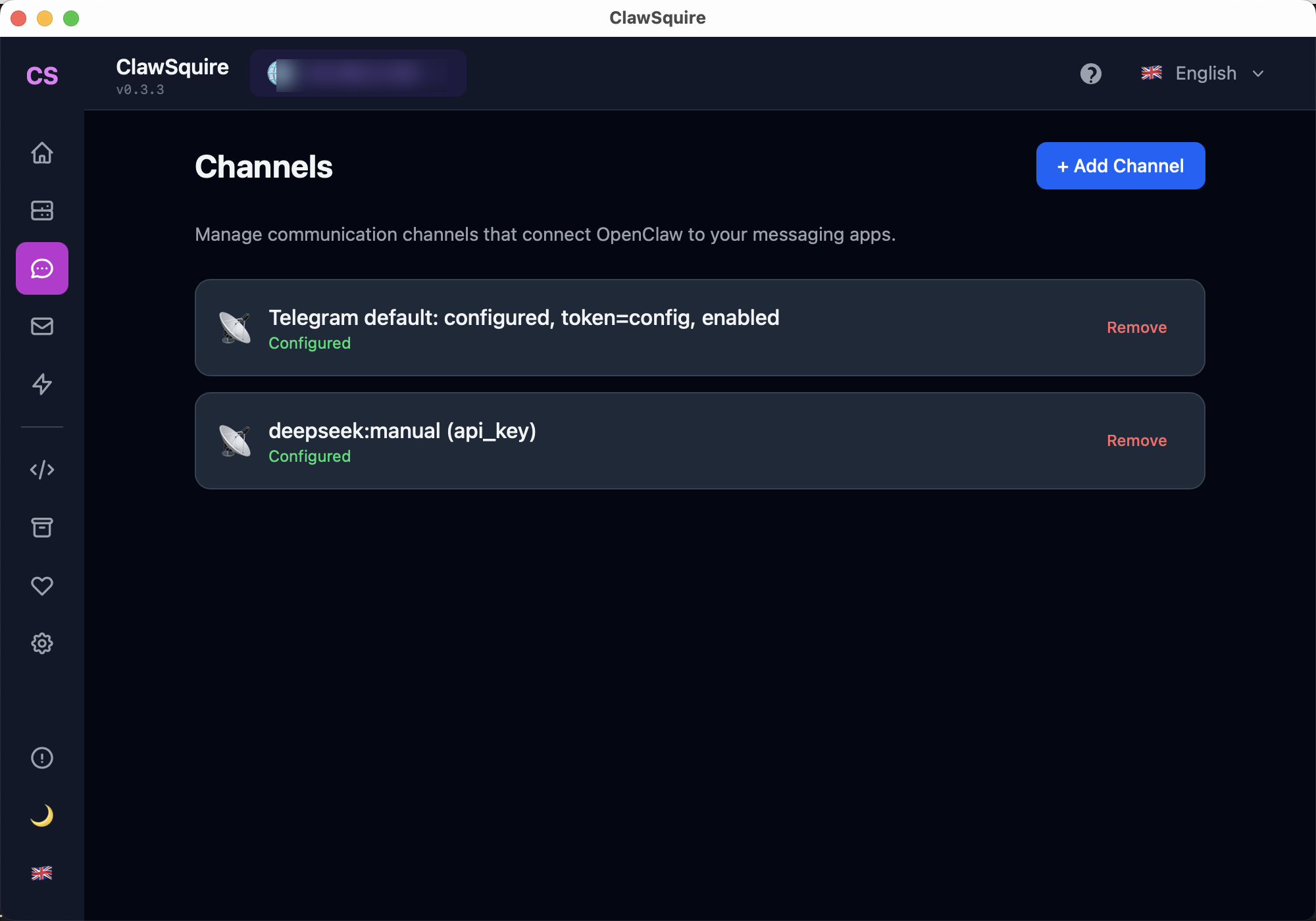
Adding WhatsApp in ClawSquire is visual — no CLI needed. The setup wizard guides you through the QR code flow.
Open ClawSquire → Channels page
Connect to your VPS if OpenClaw runs remotely.
Click "+ Add Channel"
Blue button at the top right of the Channels page.
Select WhatsApp → follow the prompts
ClawSquire shows the QR code — scan it on your phone (WhatsApp → Settings → Linked Devices → Link a Device).
Channel appears with "Configured" status
Send a message from WhatsApp to pair, then start chatting.
⟩Manual Alternative
If you prefer the CLI or don't use ClawSquire, add the channel manually.
Add WhatsApp Channel via CLI
openclaw channels add whatsappScan the QR Code
OpenClaw generates a QR code. On your phone, open WhatsApp → Settings → Linked Devices → Link a Device. Scan the QR code shown in the terminal.
Pair Your Device
After scanning, send a message from WhatsApp. OpenClaw will respond with a pairing code. Enter this code in the Dashboard or confirm it in the CLI to complete pairing.
Start Chatting
Once paired, send any message — your AI agent will respond using the LLM model you configured. The conversation is managed as an OpenClaw session.
Important
WhatsApp allows only ONE linked web session per account on some platforms. Consider using a dedicated WhatsApp number for OpenClaw to avoid conflicts with WhatsApp Web.
⟩Troubleshooting
Where do I find the QR code to link WhatsApp?+
After adding the WhatsApp channel via ClawSquire or CLI, OpenClaw generates a QR code. On your phone: open WhatsApp → Settings → Linked Devices → Link a Device. Scan the QR code shown in ClawSquire's Channels page or in the terminal. The code appears immediately after you add the channel.
QR code expired+
Regenerate the QR code: in ClawSquire, go to Channels → click the WhatsApp channel → Re-link. Or run openclaw channels login --channel whatsapp in the terminal. QR codes typically expire in 60 seconds — have your phone ready before adding the channel.
WhatsApp Web session conflict+
Log out of other WhatsApp Web sessions first. On your phone: WhatsApp → Settings → Linked Devices → unlink any existing web sessions. WhatsApp limits linked devices — if you use WhatsApp Web elsewhere, unlink it before connecting OpenClaw.
"No API key" error+
Configure an LLM provider first. In ClawSquire: Config → Model Configuration → add DeepSeek or OpenAI API key. Or see the DeepSeek setup guide. Restart the gateway after adding the key.
Can I use my personal WhatsApp number for OpenClaw?+
Yes, but WhatsApp allows only one linked web session per account on some platforms. Use a dedicated WhatsApp number for OpenClaw to avoid conflicts with WhatsApp Web. Business numbers work the same way.
Next Steps
- → Connect Telegram — another popular channel for OpenClaw
- → Set up DeepSeek — the cheapest LLM provider for reasoning tasks
- → Search OpenClaw issues for solutions to common problems
Guided setup, health diagnostics, 7 languages.