Guide
How to Run OpenClaw with Docker
Docker is ideal for VPS and headless deployments. Run OpenClaw in a container with persistent config, auto-restart, and easy updates.
Quick Answer
Run OpenClaw in Docker: docker run -d -p 18789:18789 -v openclaw-data:/root/.openclaw openclawai/openclaw. Then manage it with ClawSquire or access the Dashboard at localhost:18789.
Use ClawSquire to Manage Docker OpenClaw
After running OpenClaw in Docker (steps below), use ClawSquire to connect and manage the containerized OpenClaw — same as managing a VPS. Add your server, click Connect, and ClawSquire handles the SSH tunnel automatically.
Add your Docker host, enter SSH credentials, click Connect. No manual tunnel commands.
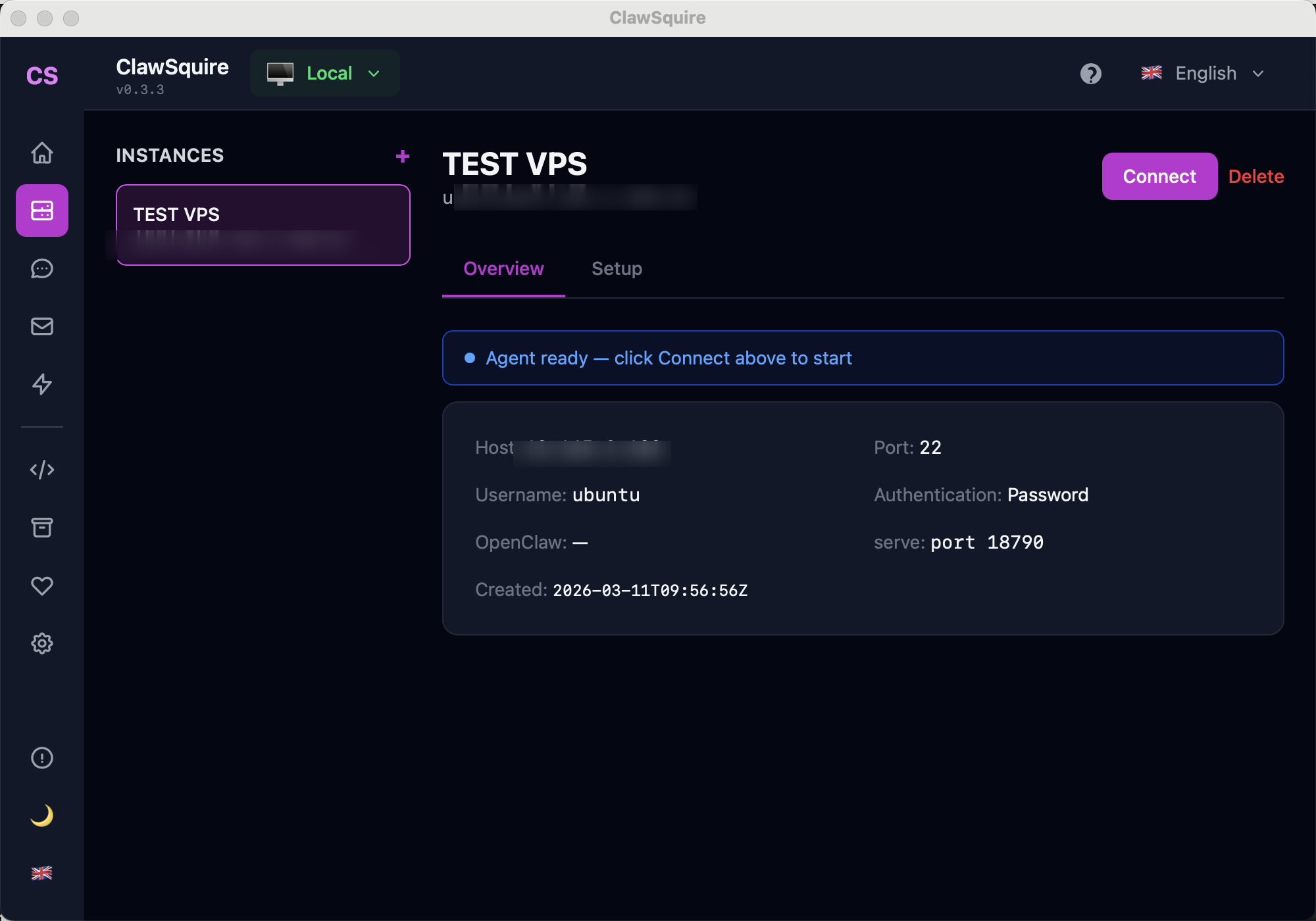
Manage OpenClaw on your Docker host from your laptop — config, channels, health check.
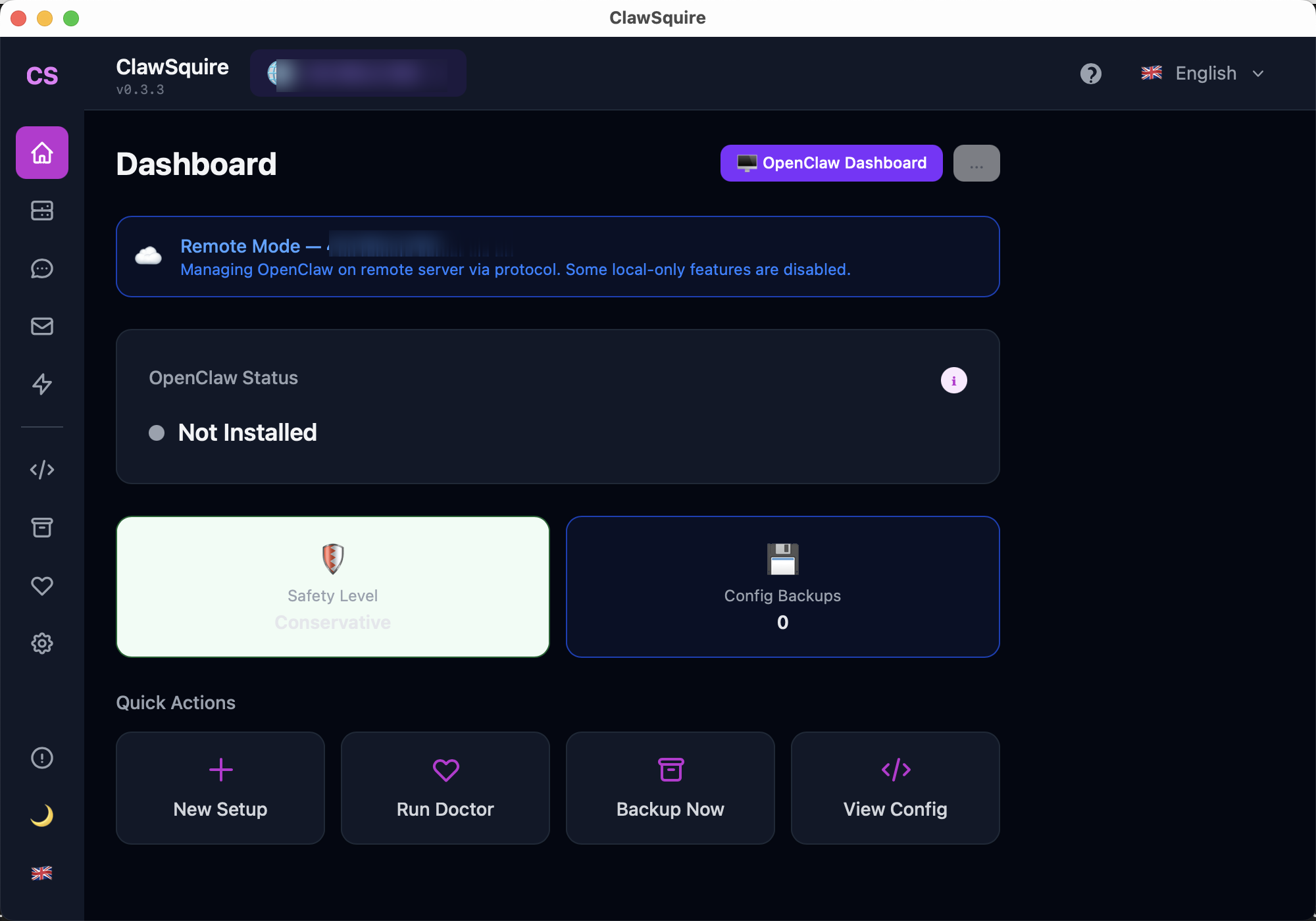
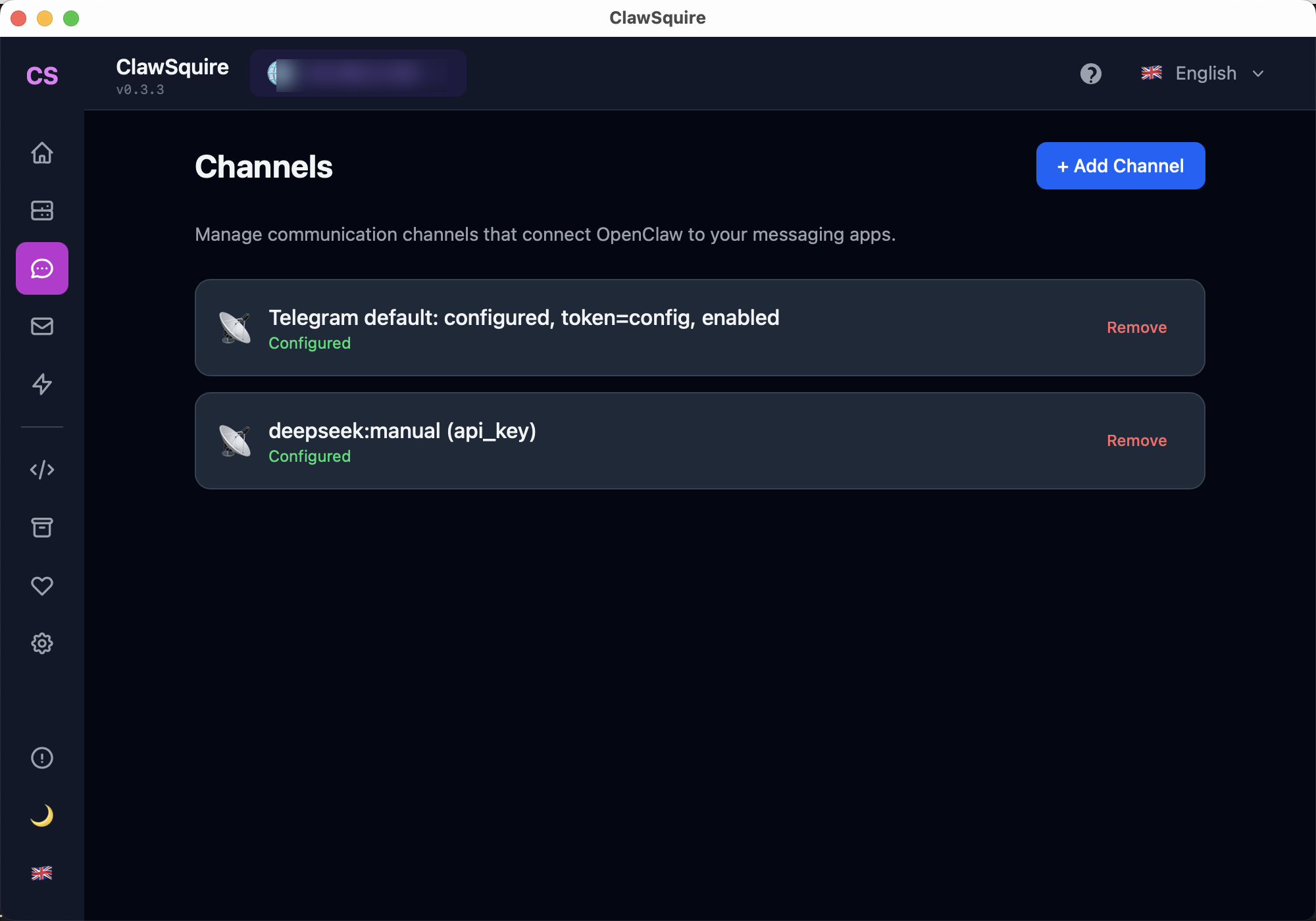
Add and manage messaging channels and LLM providers from the visual interface.
⟩Setup Steps
Manual Alternative
Prerequisites
Ensure Docker is installed. Docker Compose is optional but recommended for production.
docker --versionQuick Start with Docker Run
Run OpenClaw in a detached container with a persistent volume:
docker run -d --name openclaw \
  -p 18789:18789 \
  -v openclaw-data:/root/.openclaw \
openclawai/openclaw:latestDocker Compose (Recommended for Production)
Create a docker-compose.yml file:
version: '3.8'
services:
  openclaw:
    image: openclawai/openclaw:latest
    ports:
      - "18789:18789"
    volumes:
      - openclaw-data:/root/.openclaw
    restart: unless-stopped
    environment:
      - DEEPSEEK_API_KEY=${DEEPSEEK_API_KEY}
volumes:
  openclaw-data:
Then start the stack:
docker compose up -dAccess the Dashboard
If running on the same machine, open http://localhost:18789. For remote VPS, use an SSH tunnel:
ssh -L 18789:localhost:18789 user@your-vps-ipThen open http://localhost:18789 in your browser.
Configuration
Config persists in the openclaw-data volume. Edit via the Dashboard, or use:
docker exec -it openclaw openclaw config set ...Update
With Docker Compose:
docker compose pull && docker compose up -dWith docker run:
docker pull openclawai/openclaw:latest && docker restart openclaw⟩Troubleshooting
Port already in use+
Change the port mapping (e.g. -p 18790:18789) or stop the process using port 18789.
Container won't start+
Check logs: docker logs openclaw. Verify the image exists and your environment variables are set correctly.
Config lost after restart+
Ensure the volume is mounted. Use -v openclaw-data:/root/.openclaw for docker run, or the volumes section in docker-compose.yml.
Next Steps
- → VPS setup for full server deployment
- → Gateway token for Dashboard access
- → OpenClaw commands reference
- → Search OpenClaw issues